

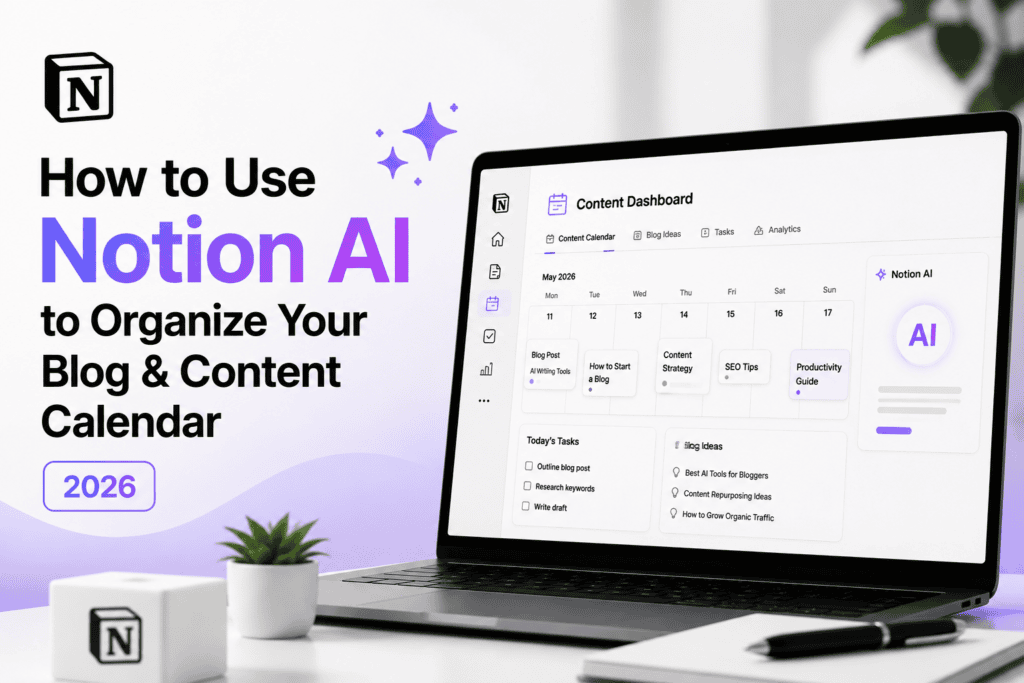
Most bloggers manage their content in a chaotic mix of browser tabs, scattered Google Docs, and memory. The result: missed publishing schedules, lost article ideas, and the constant feeling of being disorganized. Notion AI solves this, and this guide shows you exactly how to set it up as a complete blog and content calendar system for 2026.
What you’ll build in this guide
- Master Content Database — every article idea, draft, and published post tracked in one place
- AI-powered content calendar — a visual publishing schedule with status tracking
- Article brief template — a structured brief for every article, with SEO details built in
- Idea capture system — so you never lose a blog idea again
- Publishing checklist — to make sure every article is optimized before it goes live
- Weekly planning workflow — a 30-minute session that keeps everything moving
Why Notion AI Is the Perfect Tool for Bloggers
If you have not settled on Notion yet, how it compares to Obsidian and Trello is worth reading first — the three suit quite different ways of working.

Most productivity tools were built for corporate project management — overkill for solo bloggers or small content teams. Notion strikes the right balance: powerful enough to manage a serious content operation, simple enough to set up and actually use.
Notion AI takes it further by embedding artificial intelligence directly into your workspace, helping you generate article ideas, write briefs, summarize research, create outlines, and draft content without ever leaving your organizational system. If you use Notion for more than blogging, our guide to using Notion AI to organize your entire life covers the broader personal productivity setup — this guide focuses specifically on running a blog.
What this means practically: instead of switching between Notion (for planning), Notion AI and Claude (for writing), Google Docs (for drafts), and a spreadsheet (for tracking), you do everything in Notion with AI assistance built in. If you haven’t launched your blog yet, start with our step-by-step guide to starting a blog in 2026 first, then come back to build this system.
How to Set Up Your Notion AI Blog System (10 Steps)
Set Up Your Notion Account
Go to notion.so and sign up for free. The free Notion plan includes everything you need to build a complete blog management system. Notion AI costs an additional $10/month — optional to start, but it transforms the system once added.
Recommended structure: create a main page called “[Your Blog Name] HQ” — this is your homepage, and everything else lives inside it.
Build Your Master Content Database
This is the foundation of your entire blog management system. Every article, from idea through published, lives in this one database.
How to create it: inside your blog HQ page, type /database → select “Table — Full page” → name it “Content Database” → add the properties below. Notion’s own intro to databases guide is a good reference if you’re new to database properties and views.
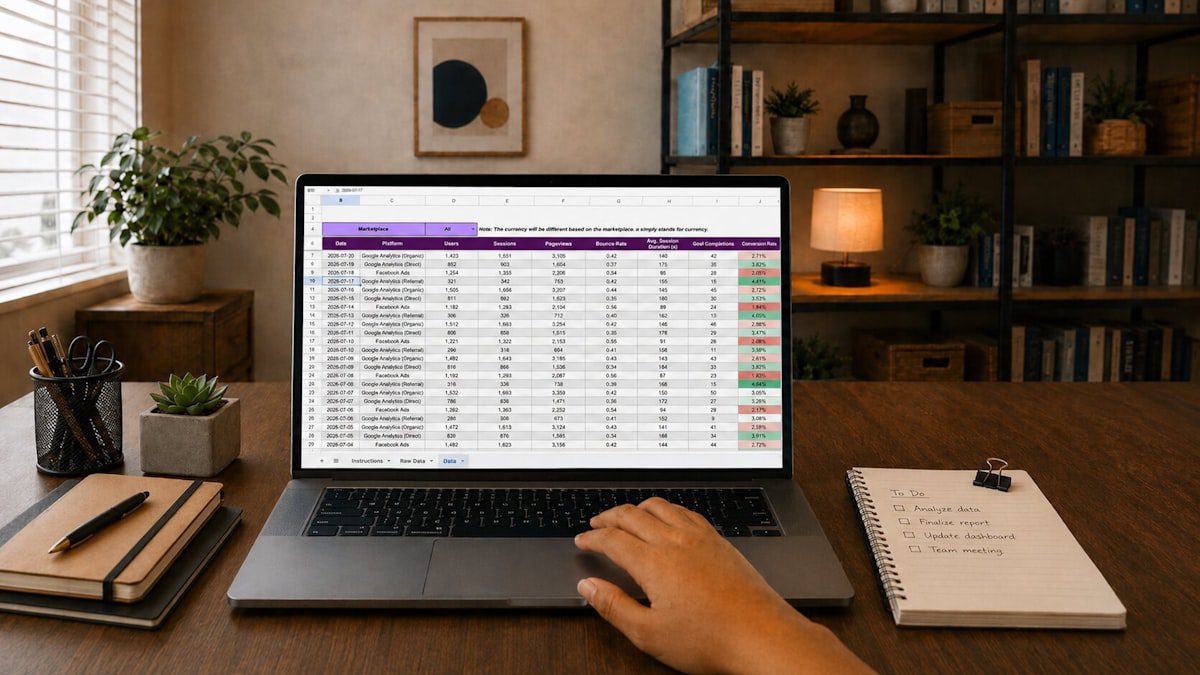
| Property | Type | Options / Notes |
|---|---|---|
| Article Title | Title | Default — your article name |
| Status | Select | Idea / Research / Outline / Writing / Editing / Scheduled / Published |
| Category | Select | AI Tools / Make Money Online / SEO / Remote Work / etc. |
| Target Keyword | Text | Primary SEO keyword |
| Publish Date | Date | Planned or actual publish date |
| Word Count | Number | Target or actual word count |
| Priority | Select | High / Medium / Low |
| Affiliate Links | Checkbox | Does this article have affiliate links? |
| Featured Image | Checkbox | Has the featured image been created? |
| Internal Links Added | Checkbox | Have internal links been added? |
| Submitted to Google | Checkbox | Submitted via Search Console? |
| Notes | Text | Any additional notes |
Create Your Content Calendar View
Now create a calendar view of the same database so you can see your publishing schedule visually.
How: in your Content Database, click “+ Add a view” → select “Calendar” → name it “Publishing Calendar” → set the date property to “Publish Date”.
You now have two views of the same data: a table view for detailed management, and a calendar view for a visual monthly overview. Use the calendar to spot gaps in your schedule, drag articles to reschedule, and click any date to add a new article directly.
Build Your Article Brief Template
Every article in your Content Database is its own Notion page. Build a template so every article page starts with the same structure.
How: in your Content Database, click the dropdown arrow next to the blue “New” button → “+ New template” → name it “Article Brief” → build the structure below.
Now every new article gets this template automatically — click “New” → “Article Brief” → start filling it in.
Use Notion AI to Power Your Content Creation
This is where the system becomes genuinely powerful. Notion AI integrates into every page, ready to help with writing, research, and planning. Press the spacebar on any empty line, or click the AI sparkle icon on the left of any line, to access it.

The most useful Notion AI features for bloggers:
- Generate article ideas — ask for a batch of ideas with suggested primary keywords for each
- Create article outlines — a full SEO outline with H2/H3 headings, an FAQ section, and a conclusion
- Write first drafts — select your outline, click AI, choose “Continue writing”
- Summarize research — paste a long article or report and ask AI to summarize the key points
- Generate meta descriptions — get three under-155-character options built around your keyword
Build Your Idea Capture System
Article ideas come at unpredictable moments — in the shower, during a commute, while reading someone else’s blog. Build a frictionless system to capture them before they disappear.
Create an “Ideas Inbox” view: go to your Content Database → add a new view → select “List” → name it “Ideas Inbox” → filter by Status = “Idea”. On mobile, the Notion app lets you add a title and set status to “Idea” in about 10 seconds. Review the inbox every Monday and promote the best ideas to “Research” status.
Create Your Weekly Planning Workflow
Consistency is the most important factor in blog growth, and a simple weekly planning ritual keeps you consistent. Here’s the 30-minute Monday session:
- Minutes 1–5 — Review last week: mark published articles, reschedule anything that slipped
- Minutes 6–15 — Plan this week: confirm this week’s articles are ready, check their status, adjust if behind
- Minutes 16–22 — Fill the pipeline: promote 2–3 ideas to “Research” or “Outline,” assign publish dates 3–4 weeks out
- Minutes 23–30 — Promotion review: check Search Console submissions and plan social posts
Set Up Database Filters for Efficiency
As your Content Database grows to 50, 100, or 200+ articles, filtering becomes essential. Useful saved filters:
- “This Week’s Work”: Status is “Writing” or “Editing” AND Publish Date within 7 days
- “Needs Affiliate Links”: Status is “Published” AND Affiliate Links unchecked
- “Submitted to Google”: Status is “Published” AND Submitted to Google unchecked
Build an SEO Keyword Tracker
Add a second database to your blog HQ for keyword tracking, separate from individual articles. Start your keyword list with our keyword research guide, which shows how to turn one seed keyword into 50 post ideas.
| Property | Type |
|---|---|
| Keyword | Title |
| Monthly Volume | Number |
| Difficulty | Number |
| Target Article | Relation → Content Database |
| Current Ranking | Number |
| Last Checked | Date |
Link each keyword to its article, update rankings monthly from Google Search Console, and track progress over time — a complete view of SEO performance without expensive external tools.
Integrate Notion with Your Writing Workflow
The most efficient blog workflow in 2026 combines Notion (organization) with an AI writing assistant like Claude AI (writing):
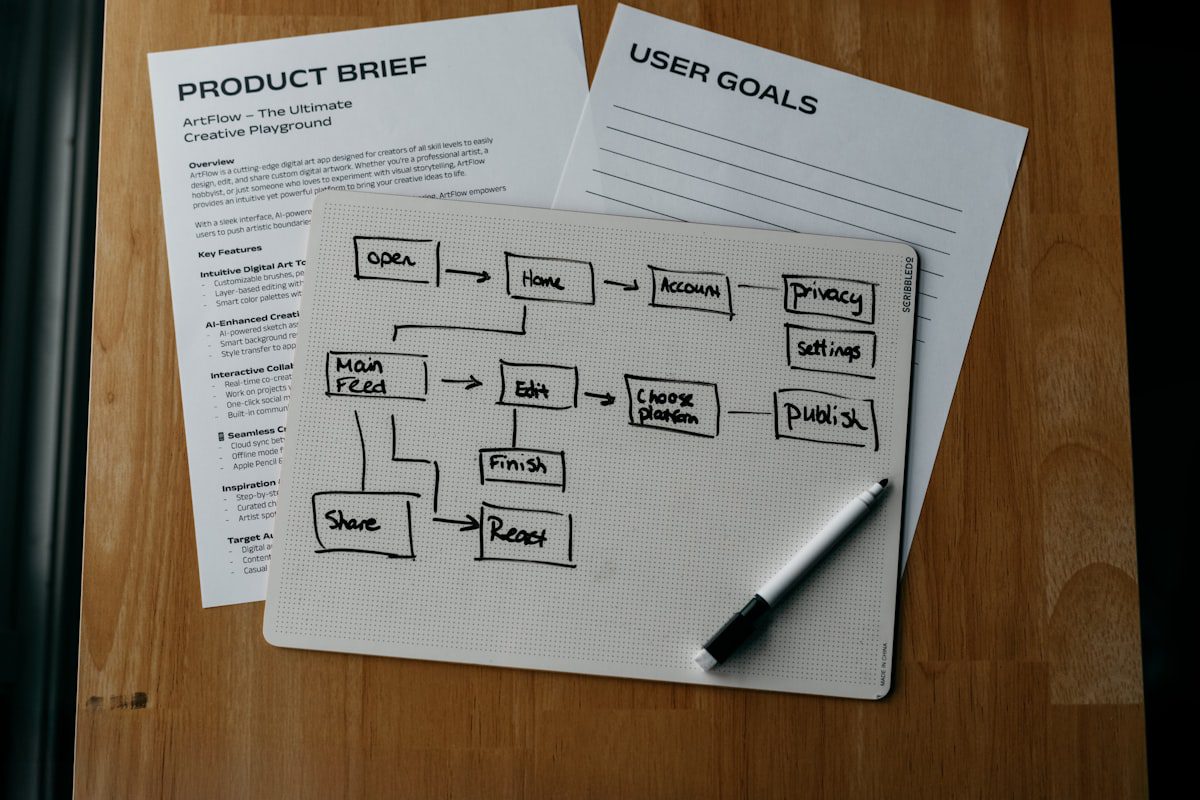
- Idea (Notion): new idea → add to Content Database → Status: Idea
- Research (Notion + Claude): research the topic, paste key findings into Research Notes → Status: Research
- Outline (Notion AI): ask Notion AI to generate an outline, review and adjust → Status: Outline
- Writing (Claude + Notion): draft each section based on the outline, paste into the article page → Status: Writing
- Editing (Notion + Grammarly): edit, run through Grammarly, verify facts, add personal insights → Status: Editing
- Optimization (Checklist): work through the publishing checklist, add internal links, write meta title/description → Status: Scheduled
- Published: publish on WordPress, update status, submit to Search Console → Status: Published
Everything documented — nothing falls through the cracks.
Notion AI Prompts for Bloggers: Quick Reference
Save these for reuse| Use Case | Prompt |
|---|---|
| Article ideas | “Generate 10 article ideas for a blog about [niche]. For each: suggest a title, primary keyword, and content type (guide/comparison/list/tutorial).” |
| Complete outline | “Create a full SEO article outline for ‘[title]’. Target keyword: ‘[keyword]’. Audience: [describe]. Include H2 and H3 headings, an FAQ section, and a conclusion.” |
| Section draft | “Write the ‘[section name]’ section of this article about ‘[topic]’. Tone: conversational and helpful. Target: 300–400 words. Include practical examples.” |
| Meta description | “Write 3 meta description options for an article titled ‘[title]’. Primary keyword: ‘[keyword]’. Under 155 characters each. Compelling and click-worthy.” |
| Weekly content plan | “Based on my blog niche of [niche], create a 4-week content plan with 2 articles per week. Include titles and primary keywords.” |
Final Thoughts: Systems Beat Willpower Every Time
The most consistent bloggers aren’t more disciplined — they have better systems. When your content calendar is visible, your article pipeline is organized, and your publishing checklist is right there when you need it, consistency becomes the default, not the exception.
Notion AI doesn’t just organize your blog — it accelerates every stage of the content creation process. From idea to published article, the workflow in this guide cuts the administrative overhead of blogging in half.
Key takeaway
Set it up this weekend. Spend 2–3 hours building the system, then let it do the work of keeping you organized while you focus on what actually matters: creating content that helps your audience.