
PNG vs JPG vs WebP vs HEIC — Which Format, When
What each image format is actually for, the four conversions everyone needs, why browser-based converting beats upload sites, and quality settings that matter.

Somebody sends you a photo and your computer refuses to open it. A website saves an image as .webp and your editor pretends it does not exist. Your iPhone shoots .heic and the government portal wants .jpg — only .jpg — and rejects everything else without explanation.
Image formats are one of those quietly infuriating corners of computing: four major formats, each excellent at exactly one job, constantly showing up in the wrong place. This guide explains what PNG, JPG, WebP and HEIC actually are, when each one wins, why conversion is the everyday fix — and how to convert between all of them in your browser without uploading anything anywhere.
Image Converter
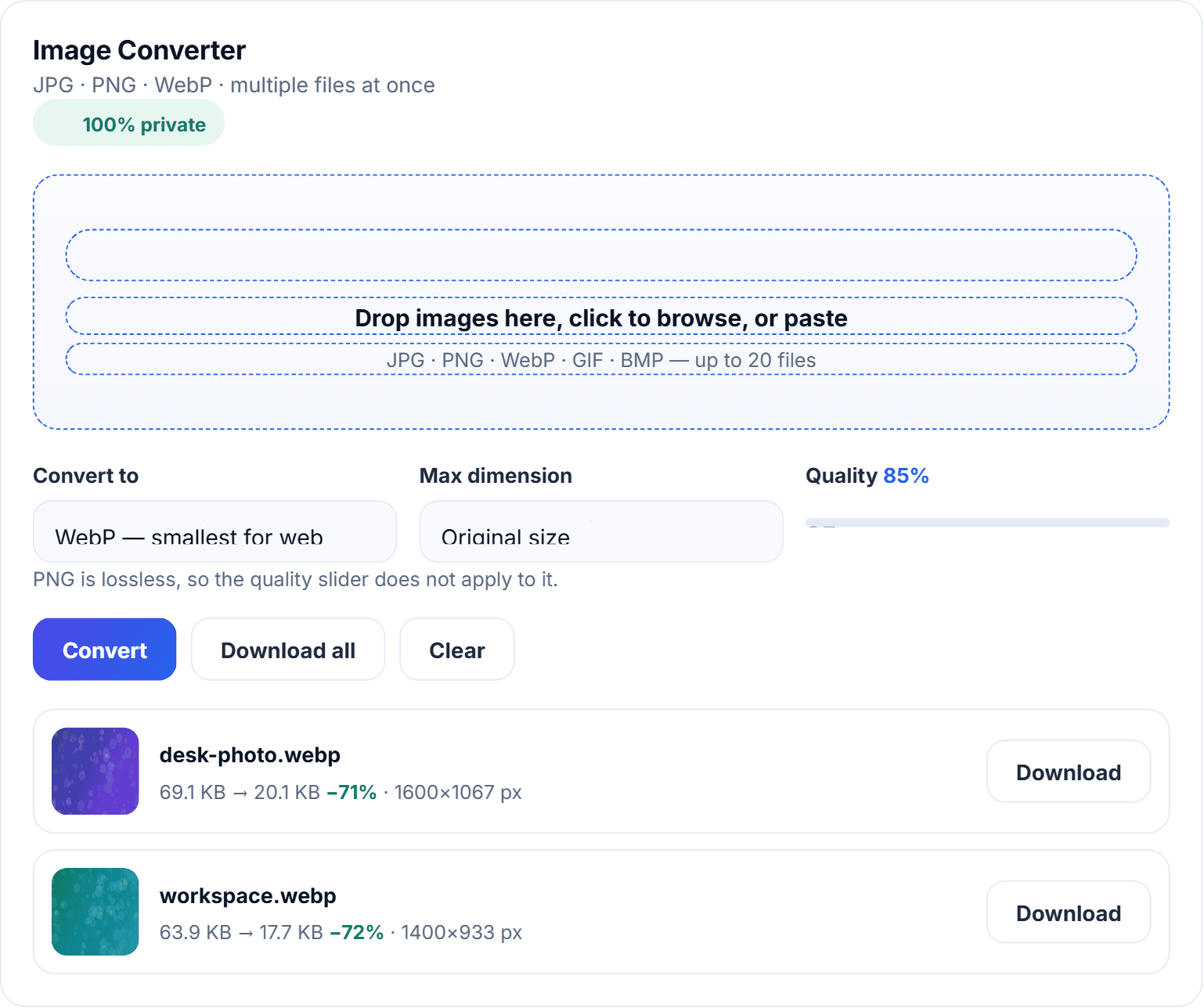
Convert between JPG, PNG and WebP, and resize while you are at it.
The four formats, explained like a human
JPG — the universal photo format
Born in 1992 and still everywhere. JPG compresses photos by throwing away detail your eye barely registers, which makes files dramatically smaller — a 20MB camera photo becomes a 2MB JPG that looks identical on screen. Every device, browser, portal and app made in the last three decades opens it. Its two weaknesses: no transparency, and quality erodes a little more each time you edit and re-save.
PNG — the lossless workhorse
PNG stores every pixel exactly, supports transparency, and survives unlimited re-saves untouched. That makes it the right choice for screenshots, logos, graphics with text, and any image you plan to keep editing. The cost is size — a photo saved as PNG can be five to ten times bigger than the same photo as JPG, which is why sending PNGs by email hurts.
WebP — the web’s favourite
Google’s format does both jobs — lossy like JPG or lossless like PNG — at 25–35% smaller sizes. Practically every modern website serves WebP for speed, which is why right-click-saving images increasingly lands .webp files on your desk. The catch: older editors, some Windows apps and plenty of upload forms still reject it.
HEIC — the iPhone special
Apple’s default camera format stores photos at roughly half the size of JPG with the same quality — brilliant for your phone storage, maddening for everyone you send photos to. Windows PCs need codecs, most web portals refuse it, and older software has no idea what it is. HEIC is the single most-converted format on earth for a reason.
The conversions people actually need
- PNG → JPG: your screenshot or graphic is too big to email or upload. Converting shrinks it 5–10× instantly. (Transparency becomes white — our converter does this cleanly instead of the ugly black boxes cheap tools produce.)
- JPG → PNG: you are about to edit an image repeatedly and want to stop quality erosion, or an app insists on PNG uploads.
- WebP → PNG: you saved an image from a website and nothing on your computer will open it. The classic 2020s problem, solved in one drop.
- HEIC → JPG: iPhone photos that need to work on a Windows PC, a government form, a job portal, or literally anywhere outside the Apple garden.
Why browser-based conversion beats the alternatives
There are three ways to convert an image, and two of them have problems.
Installed software (Photoshop, GIMP, IrfanView) works fine but is overkill — nobody wants to launch a 2GB editor to convert one photo, and half the time you are on a computer that does not have it installed.
Upload-based converter sites are the popular option with a privacy problem nobody reads about: your image travels to their server, gets processed, sits in their storage for some retention period their privacy policy describes vaguely, and comes back. For memes, fine. For your passport scan, your child’s photo, your ID documents? You just handed those to a stranger’s server, forever hoping they delete them.
Browser-based conversion — the way our converters work — does the whole job on your own device using the browser’s built-in image engine. The file never leaves your computer. There is no upload progress bar because there is no upload. This is not a marketing line; you can disconnect your WiFi after the page loads and conversion still works.
The best image converters compared
1. HN Solutions converters — best for privacy and speed
Our four converters — PNG→JPG, JPG→PNG, WebP→PNG and HEIC→JPG — share one engine: drag-and-drop or paste (Ctrl+V), batch support, a quality slider for lossy output, preview cards with size and dimensions, and Download All. Everything runs locally, including HEIC decoding, which almost no free tool does in-browser. Free, no watermark, no signup, no file limits.
2. CloudConvert — most formats, upload required
Handles hundreds of formats including video and documents. Excellent breadth, but files upload to their servers and the free tier caps daily conversions.
3. Convertio — polished, freemium walls
Clean interface, wide format support, 100MB free limit and upload-based processing with paid tiers doing the heavy lifting.
4. Windows Photos / macOS Preview — built in, basic
Both can export to common formats one file at a time. Free and offline, but clunky for batches and neither touches HEIC on Windows without paid codecs.
5. XnConvert — desktop batch power
A genuinely good free desktop batch converter for heavy users who convert hundreds of files regularly. Requires installation and a tolerance for 2005-era interfaces.
Quality settings that actually matter
When converting to JPG or WebP, the quality slider decides everything:
- 92% (our default): visually identical to the original for photos. This is the sweet spot — below the threshold where eyes notice, above the range where compression artifacts creep in.
- 100%: for archival copies. Files get noticeably bigger for improvement you cannot see.
- 70–85%: for web images where every kilobyte counts — pair with our exact-KB compressor if you need to hit a specific size limit like 50KB for a form.
How to convert an image (any direction)
- Open the converter for your direction — say HEIC to JPG for iPhone photos.
- Drop your images in. Batch works: drop your whole camera-roll export at once.
- Adjust output format or quality if needed — the right defaults are pre-selected per page.
- Download each converted file, or everything with one click.
Pro tips: keep originals of anything important — conversion to a lossy format is one-way; for iPhone users tired of converting, switch the camera to JPG permanently at Settings → Camera → Formats → Most Compatible; and if the destination has a size limit, convert format first, then run the result through the compressor.
Format questions worth answering
Does converting lose quality?
To PNG: never — it is lossless. To JPG/WebP at 92%: nothing your eye can see. Repeated JPG→edit→JPG cycles do compound loss, which is exactly why editors work in PNG.
Why did my transparent logo get a black background on another site?
JPG has no transparency, and lazy converters fill the empty pixels with black. Ours fills with white — or convert to PNG/WebP to keep transparency entirely.
Is HEIC better than JPG?
Technically yes — half the size at equal quality. Practically, compatibility beats efficiency the moment a file leaves your phone, which is why HEIC→JPG remains one of the most-searched conversions in the world.
Are my images really not uploaded?
Really. Conversion uses your browser’s canvas engine on your own hardware. Airplane-mode test it if you like.
Choosing a format without overthinking it
Formats are tools: JPG to share, PNG to edit, WebP to serve, HEIC to shoot. When one shows up in the wrong role, convert it in ten seconds with our free converters — PNG→JPG, JPG→PNG, WebP→PNG, HEIC→JPG — then meet the rest of the free daily tools, including the exact-size compressor these converters pair with beautifully.